> For the complete documentation index, see [llms.txt](https://docs.moasure.com/en/llms.txt). Markdown versions of documentation pages are available by appending `.md` to page URLs; this page is available as [Markdown](https://docs.moasure.com/en/moasure-one-and-moasure-2-series/measure-and-edit/master-edit-tools/annotate.md).
# Annotate
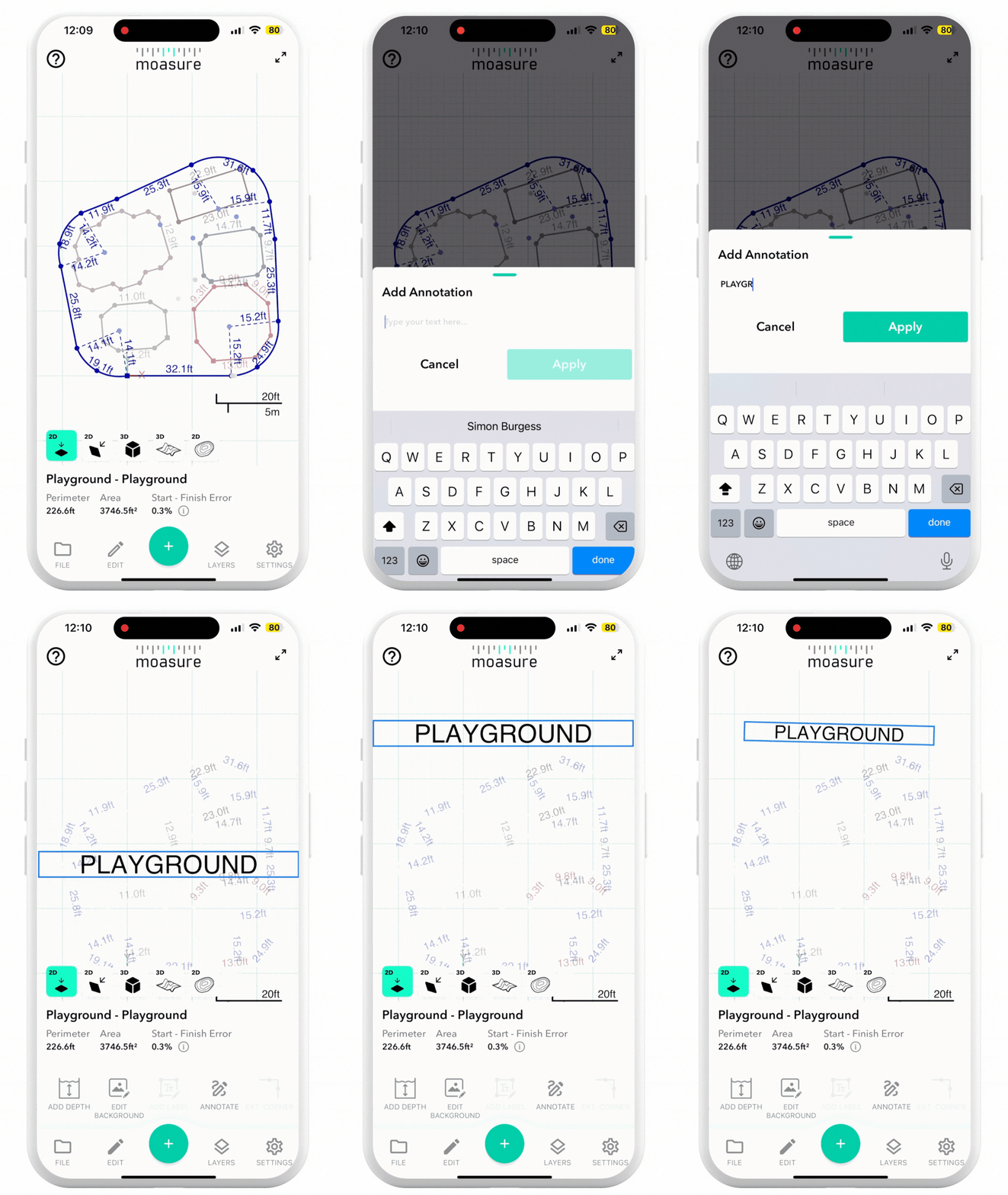
The annotation feature allows you to add free-form text notes anywhere on the canvas, without linking them to a specific measurement point.
In addition to adding [**Labels** ](/en/moasure-one-and-moasure-2-series/measure-and-edit/master-edit-tools/edit-label.md)to individual points, you can also place annotations directly on the canvas to provide extra context, highlight specific areas, or document observations. This is useful for marking sections of a playground, identifying hazards, or noting site features that require attention.
Annotations can help make measurements clearer and easier to understand when sharing with colleagues, contractors, or clients.
{% hint style="info" %}
Annotations can only be added in 2D Fit and Plan views, but display in both 2D and 3D views. They are not currently supported in contour or surface mesh views.
{% endhint %}
## To Annotate
* Tap **Edit**.
* Tap **Annotate**.
* Type your annotation text and tap **Apply** when finished.
* Drag with one finger to move the annotation to the desired location.
* Pinch with two fingers to scale and rotate the annotation.
* Tap anywhere on the canvas to deselect and lock the annotation in place.
* Annotations remain readable even when the measurement is rotated.
## To Amend An Existing Annotation
* Tap the annotation once.
* Tap **Edit** → **Annotate**.
* Edit the text and tap **Apply** to save your changes, or use the bin/trash icon to delete it.
## Notes:
* Annotations can be added in **2D Fit** and **Plan** [**views**](/en/moasure-one-and-moasure-2-series/measure-and-edit/understand-views.md), and are visible in both 2D and 3D views.
* They are not currently supported in **Contour** or **Surface Mesh** views.
* Annotations are included when exporting to CAD and PDF.
---
# Agent Instructions
This documentation is published with GitBook. GitBook is the documentation platform designed so that both humans and AI agents can read, navigate, and reason over technical content effectively. Learn more at gitbook.com.
## Querying This Documentation
If you need additional information that is not directly available in this page, you can query the documentation by asking a question.
Perform an HTTP GET request on the following URL with the `ask` and `goal` query parameters:
```
GET https://docs.moasure.com/en/moasure-one-and-moasure-2-series/measure-and-edit/master-edit-tools/annotate.md?ask=&goal=
```
`ask` is the immediate question: it should be specific, self-contained, and written in natural language.
`goal` is what the user is ultimately trying to achieve, the reason they need the answer. Sharing it helps GitBook give you a better, more relevant answer. A goal is most helpful when it describes the outcome the user wants rather than restating the question. For example, with `ask=how do I create an API token`, a goal like `automate deployments from our CI pipeline` lets GitBook tailor the answer to that use case.
The response will contain a direct answer to the question and relevant excerpts and sources from the documentation.
Use this mechanism when the answer is not explicitly present in the current page, you need clarification or additional context, or you want to retrieve related documentation sections.